QuickLook – Free Download for Windows 11 & 10
QuickLook is a free and open-source file preview tool for Windows that lets you instantly view images, PDFs, videos, and documents without opening separate applications. Simply select a file and press the Spacebar to preview its contents. Enjoy faster file browsing, a clean interface, and a smooth experience on Windows 11 and Windows 10.
Download QuickLook Free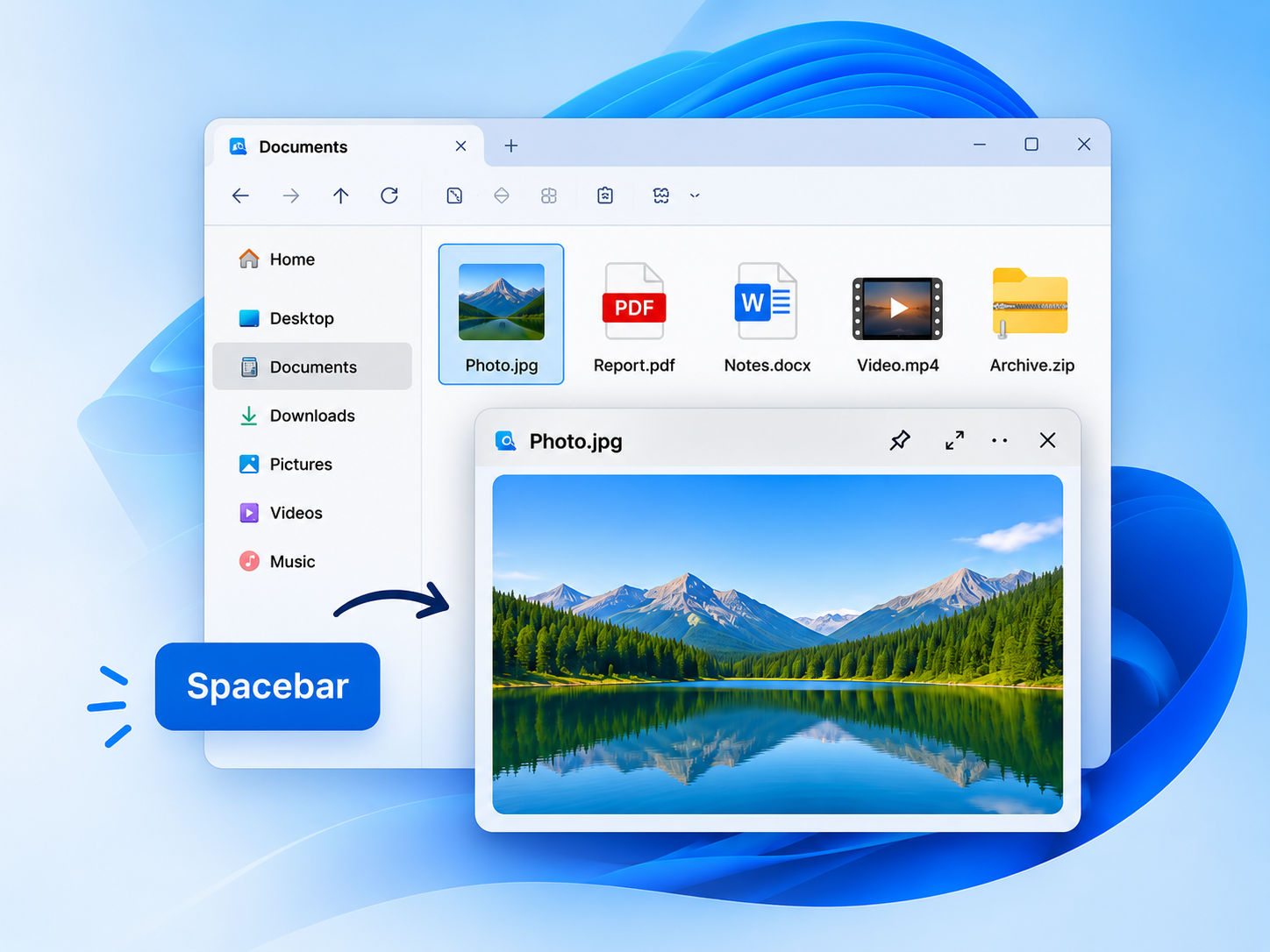
What Is QuickLook?
QuickLook is a free and open-source file preview application for Windows that allows you to view file contents instantly without opening separate programs. Inspired by the macOS Quick Look feature, it brings a simple and convenient preview experience to Windows 10 and Windows 11.
With QuickLook, you can select a file in Windows File Explorer and press the Spacebar to preview images, PDF documents, videos, audio files, and other supported formats. This eliminates the need to repeatedly open and close applications just to check a file.
Whether you're organizing photos, reviewing documents, or browsing multimedia files, QuickLook helps you save time and navigate folders more efficiently. Its lightweight design, easy keyboard controls, and support for multiple file formats make it a useful tool for everyday Windows users.
Key Features of QuickLook
QuickLook makes browsing files on Windows easier with instant previews, convenient keyboard shortcuts, and support for multiple file formats. Explore the features that help you view and manage files more efficiently.
Instant File Preview
Preview supported files immediately without launching separate applications. QuickLook lets you inspect images, documents, and multimedia files directly from Windows File Explorer, making everyday file browsing faster and more convenient.
Spacebar Preview Shortcut
Select a file in File Explorer and press the Spacebar to open its preview. This simple keyboard shortcut allows you to check file contents quickly without repeatedly opening and closing different programs.
Multiple File Format Support
QuickLook supports common file types, including images, PDFs, text files, audio, videos, and certain archives. Additional formats may be available through compatible plugins, depending on your installation.
Clean and Simple Interface
Enjoy a straightforward preview window that keeps the focus on your files. QuickLook provides easy controls and a familiar viewing experience, making it suitable for beginners and experienced Windows users.
Free and Open-Source
QuickLook is available as free and open-source software. You can use its file preview features without purchasing a license, while developers can explore its publicly available source code on GitHub.
Additional Plugin Support
Extend QuickLook's preview capabilities with compatible plugins. These additions can provide support for specialized file formats and make the application more useful for different types of documents and files.
How Does QuickLook Work?
QuickLook makes file previewing simple with just a few steps. Once the application is installed and running, you can view supported files directly from Windows File Explorer using the Spacebar.
Select a File
Open Windows File Explorer and navigate to the folder containing the file you want to preview. Select an image, PDF, video, document, or another supported file.
Press the Spacebar
With the file selected, press the Spacebar on your keyboard. QuickLook will open a preview window displaying the contents of the selected file.
Preview Your File
View the file contents without opening its default application. When you finish, press the Spacebar again to close the preview and continue browsing your files.
File Formats Supported by QuickLook
QuickLook supports a wide range of file types, making it easier to preview images, documents, videos, audio files, and archives without opening separate applications.
One Tool, Multiple Formats
Preview compatible files directly from Windows File Explorer. Simply select a file and press the Spacebar to view its contents instantly.
Image Files
Preview photographs, graphics, and pictures.
PDF Documents
Quickly review reports, invoices, and PDFs.
Video Files
Check compatible video clips and recordings.
Audio Files
Preview supported music and audio recordings.
Text & Documents
Read text and other compatible document files.
Archive Files
Examine supported compressed file archives.
Preview compatibility depends on your QuickLook version, installed codecs, and available plugins. Some formats, including those marked with *, may require additional components.
Download QuickLook for Windows 11 & 10
QuickLook is a free and open-source Windows file preview application that lets you view supported images, PDFs, videos, and documents instantly. Download QuickLook and enjoy convenient file previews using the Spacebar without opening separate applications.
QuickLook for Windows
Get QuickLook and make everyday file browsing easier with instant previews and convenient keyboard controls.
Download QuickLook FreeQuickLook supports compatible Windows 10 and Windows 11 computers. Download the ZIP archive and follow the setup instructions appropriate for the included files.
How to Install QuickLook on Windows
QuickLook is easy to set up on compatible Windows computers. Follow these simple steps to download the application, complete the installation, and start previewing supported files directly from Windows File Explorer.
Download QuickLook
Download the QuickLook archive for Windows using the download button provided on this page. Once the download is complete, locate the ZIP file in your Downloads folder. Make sure you are using a compatible Windows 10 or Windows 11 computer.
Extract the ZIP Archive
Right-click the downloaded ZIP file and select "Extract All" to unpack its contents. Open the extracted folder and review the included files. If the archive contains an installer, follow its setup instructions. If it contains source code, you will need a compiled QuickLook release to run the application.
Complete the Setup
If you downloaded an installation package, open it and follow the on-screen instructions. For a portable release, extract the application files into a suitable folder and launch the included executable. The installation method depends on the QuickLook package you downloaded.
Launch QuickLook
After completing the installation, launch QuickLook from the Windows Start menu or open the application from its portable folder. Keep QuickLook running so its file preview functionality remains available while browsing files in Windows File Explorer.
Start Previewing Your Files
Open Windows File Explorer and select a supported image, PDF, video, or document. Press Spacebar to open the QuickLook preview window. View the file contents without launching a separate application. Press Spacebar again to close the preview and continue browsing your files.
Why Choose QuickLook for Windows?
QuickLook makes everyday file management easier with instant previews, convenient keyboard controls, and support for different file formats. Discover how QuickLook can improve your Windows file browsing experience.
Save Time While Browsing Files
QuickLook allows you to preview supported files without repeatedly launching and closing applications. Find documents, images, and other files more conveniently.
Simple Keyboard Controls
Select a file and press the Spacebar to view its contents. Enjoy an easy preview experience without complicated menus or unnecessary steps.
Multiple File Format Support
Preview images, PDFs, supported videos, audio files, and documents using one convenient application directly from Windows File Explorer.
Free and Easy to Use
QuickLook is free and open-source software with a straightforward interface, making it useful for students, professionals, designers, and everyday Windows users.
Select a file and use the Spacebar to preview its contents.
SpacebarQuickLook Not Working? Common Fixes
If QuickLook is not previewing files correctly, the problem may be related to keyboard shortcuts, file compatibility, or application settings. Use the solutions below to identify and resolve common QuickLook issues on Windows.
Spacebar Shortcut Not Working
Make sure QuickLook is running on your computer. Open Windows File Explorer, select a supported file, and press the Spacebar. If nothing happens, check whether another application is using the same keyboard shortcut.
File Format Not Supported
Check whether the selected file format is supported by QuickLook. Some specialized formats require additional plugins or codecs. Try previewing a common JPG image or PDF document to determine whether the issue affects only a particular file type.
Preview Window Not Opening
Close QuickLook completely and launch it again. Restart Windows File Explorer if the problem continues. Also verify that your installed QuickLook version is compatible with your Windows system and check for available updates.
Slow File Preview
Large documents and high-resolution media files may take longer to preview. Close unnecessary applications, check available system resources, and test a smaller file. Updating QuickLook and the required media components may help improve performance.
QuickLook Stops Responding
Restart QuickLook and try opening a supported file again. If the application remains unresponsive, use Windows Task Manager to end the QuickLook process. Check for updates and review recently installed plugins if the issue occurs repeatedly.
Frequently Asked Questions
Find answers to the most common questions about QuickLook, including its features, free download, Windows compatibility, installation, supported file formats, and instant file preview functionality.
What is QuickLook used for?
QuickLook is a free and open-source file preview application for Windows. It allows users to view supported images, PDFs, videos, documents, and other files without opening separate programs. Simply select a file in Windows File Explorer and press the Spacebar to preview its contents instantly.
Is QuickLook free to download and use?
Yes, QuickLook is completely free and open-source software. You can download and use its supported file preview features without purchasing a license or paying a subscription fee. The application is designed to provide a convenient file browsing experience for Windows users.
Does QuickLook work on Windows 11?
Yes, QuickLook supports compatible Windows 11 computers. After installing and launching the application, you can select supported files in Windows File Explorer and press the Spacebar to preview their contents without opening separate applications.
Can I install QuickLook on Windows 10?
Yes, QuickLook works on compatible Windows 10 computers and provides instant file previews through Windows File Explorer. However, the Microsoft Store listing states that QuickLook does not work on Windows 10 S devices. Make sure your computer meets the application's compatibility requirements.
How do I preview files using QuickLook?
First, launch QuickLook on your Windows computer. Open Windows File Explorer and navigate to the folder containing the file you want to preview. Select a supported file and press the Spacebar. QuickLook will display a preview window showing the file contents. Press Spacebar again to close the preview.
What file formats does QuickLook support?
QuickLook supports several popular file formats, including JPG, JPEG, PNG, GIF, BMP, PDF, TXT, and various compatible audio and video formats. It can also preview certain documents and archives. Additional file formats may require compatible plugins, codecs, or other preview components.
Can QuickLook preview PDF documents?
Yes, QuickLook supports PDF file previews. You can select a compatible PDF document in Windows File Explorer and press the Spacebar to examine its contents without manually opening a separate PDF reader. This feature is useful for reviewing reports, invoices, assignments, and other PDF documents.
How do I install QuickLook on Windows?
Download a compatible QuickLook installation package and follow its setup instructions. If you download a ZIP archive, extract its contents and check whether it includes an installer or a portable executable. Source-code archives require a compiled application build. Once installed, launch QuickLook and use the Spacebar to preview supported files.
Why is QuickLook not opening file previews?
If QuickLook is not opening file previews, first make sure the application is running. Check whether the selected file format is supported and whether another application is using the Spacebar shortcut. Restart QuickLook or Windows File Explorer if necessary. Some file formats may require additional plugins or codecs.
Is QuickLook available on GitHub?
Yes, QuickLook is an open-source project available on GitHub. Users can explore its publicly available source code, review documentation, check development updates, and access published releases. GitHub also provides information about compatible plugins and the application's ongoing development.